cPanel Email Migration
Email migration transfers email accounts from one server to another, often to upgrade services or change providers. This ensures continuity of communication for businesses and individuals, preserving important correspondence and contacts. Additionally, email migration allows for improved efficiency, security, and better management of email services.
This article will walk you through how you can transfer your email accounts from one cPanel to another. This process is also known as Email Account Migration.
Legend:
cPanel A = Server that the email account is currently on and will soon be moved from.
cPanel B = Server to which you want to move the email account.
Step 1: Prepare your new cPanel
Re-create the email account in your cPanel B.
Important Note:
- Make sure to use the same email address and its corresponding password for every account that you're migrating
- Make sure to update the quota size as well.
Step 2: Download the files from your old cPanel
Note: Sent emails might not be included in the backup because email clients can sync differently. Factors like your phone's operating system (iPhone, Android) and the email client you use can affect whether sent emails are synced.
Log in to your cPanel A where the current email accounts are operating. You can retrieve your files in 2 ways: Using FTP or directly via File Manager.
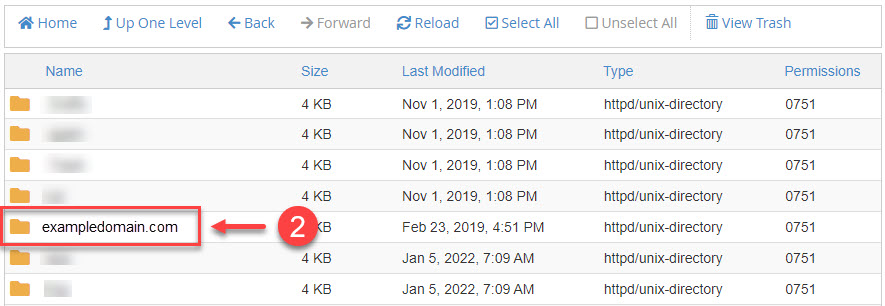
From the root directory, navigate to ① mail → ② click the folder of the domain in question (yourdomain.com) → ③ hit on the next folder whose name is the user email account in question (johnsmith).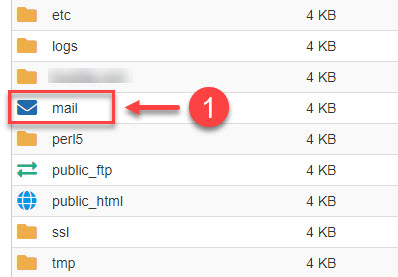

You will be able to see a bunch of files inside it, but all you really need to copy are the new and cur directories (the maildirsize file is only optional, but is highly suggested to be included).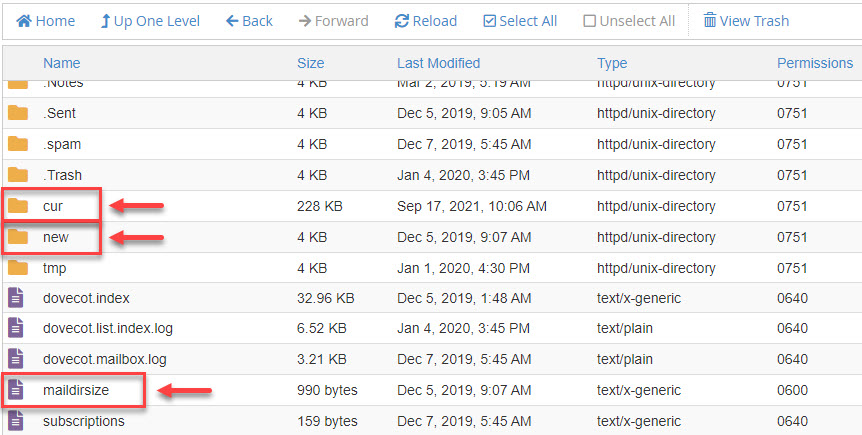
For instructions on how to download these, please see How to Compress Files into an Archive (GZip).
Note: If you have a lot of emails, this could take a while.
Step 3: Transfer - Upload your files to your new cPanel
Ready all the files you downloaded in step 2, upload the new, cur, and maildirsize to cPanel B root directory: mail → yourdomain.com → user-email-account. The folders should be automatically created when you accomplish the instructions in step 1. You can upload files in 2 ways: Using FTP or directly via File Manager.
If you have a compressed file (zip file), make sure to extract it after the upload process.
Note: This step might also take a while, depending on the size of the email accounts being migrated.
- 0 Users Found This Useful