How to Show Hidden Files at cPanel File Manager

By default, when you use the File Manager in cPanel, it doesn’t show hidden files. Hidden files are any file that begins with a dot, such as .htaccess. .htaccess is a common file to edit, so to edit the file using your File Manager, you’ll need to have the option selected to show hidden files. To see the hidden files in cPanel File Manager follow these steps:

  • Log into your cPanel account
  • Go to File Manager (Files Section)
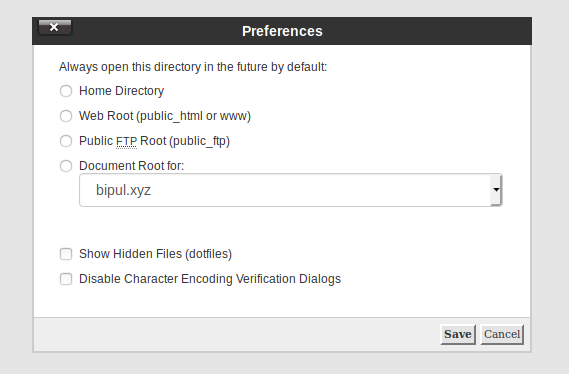
  • Click the top-right Settings button.
  • Then on the Preferences window, check the option Show Hidden Files (dotfiles)
  • Confirm the action by clicking the Save button
  • Now you will see all hidden files (including .htaccess files) in File Manager.
  • 0 Users Found This Useful
Was this answer helpful?

Related Articles

Modifying the htaccess file to use a custom php.ini file throughout your website

This guide provides instructions for modifying .htaccess to use a custom php.ini throughout your...

Customise the php.ini file settings in Code Editor

1. Log in to cPanel, if you haven’t already done so 2. If you haven’t already done so, create a...

Creating a new php.ini file

If you do not have a php.ini file in your public_html folder you can create one by following the...

My e-mail is going to the bulk or spam folder!

You can create an SPF record from cpanel > Email Authentication for your all domains that are...

I lost or forgot my cPanel or WHM password - how can I reset it?

Resetting your cPanel password and finding your cPanel username is easy and can be handled...